A five-minute tour of the home page
On this page
The home page has six parts, and each one does a different job. This tour takes them in the order you meet them, from the top of the page to the bottom.
#The top: Home, colour theme and Menu
The black bar at the top holds three controls. Everything else on the page sits below it.
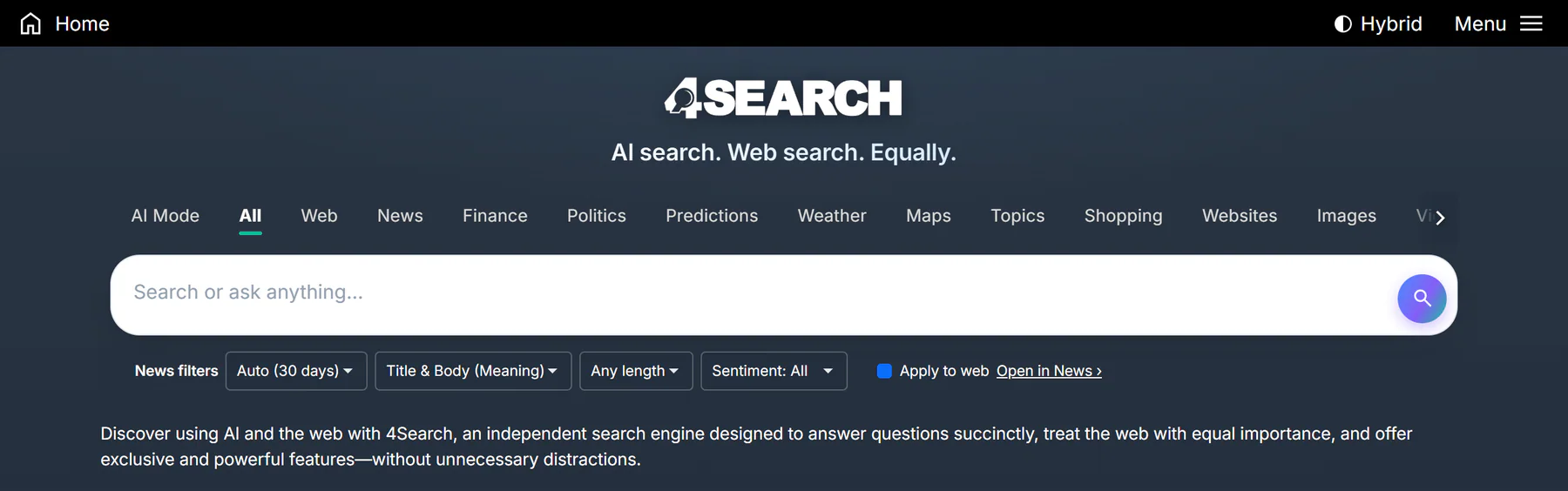
The top of the home page, from the black bar down to the News filters.
- 1Home: back to this page
- 2Colour theme button
- 3Menu
- 4Service tabs
- 5Search box
- 6News filters
- Home takes you back to the home page from anywhere. On a results page this spot shows the 4Search logo instead.
- The colour theme button shows the name of the current theme: Hybrid, Light or Dark. Each press moves to the next one, and the site remembers your choice in this browser. See Choose Hybrid, Light or Dark.
- Menu opens a list of pages, covered below.
Under the bar are the logo and a line of text that changes every few seconds between two short taglines. Each site has its own words there.
#The service tabs and the search box
- The service tabs are the row under the logo: AI Mode, All, Web, News and so on. Each tab is a different kind of search or a different service. The tab you are on is underlined and bold. If the row is wider than your window, an arrow appears at its edge; select it, or slide the row, to see the rest. Choose the right tab explains each one.
- The search box says Search or ask anything…. Type your words, or a full question, and press Enter. After two letters, suggestions appear below it. Run your first search walks through what happens next.
- The News filters row narrows the news results: how far back to look, which part of an article to match, how long the article is, and its sentiment (more positive or more negative). Open in News › runs the same search on the News tab. The row slides sideways on a small screen. See Searching.
Below the filters, a line of text says what the site is for. On a site other than 4Search it also says the site is part of the 4SEARCH network.
#The Menu
Select Menu to open a list that is the same on every page.
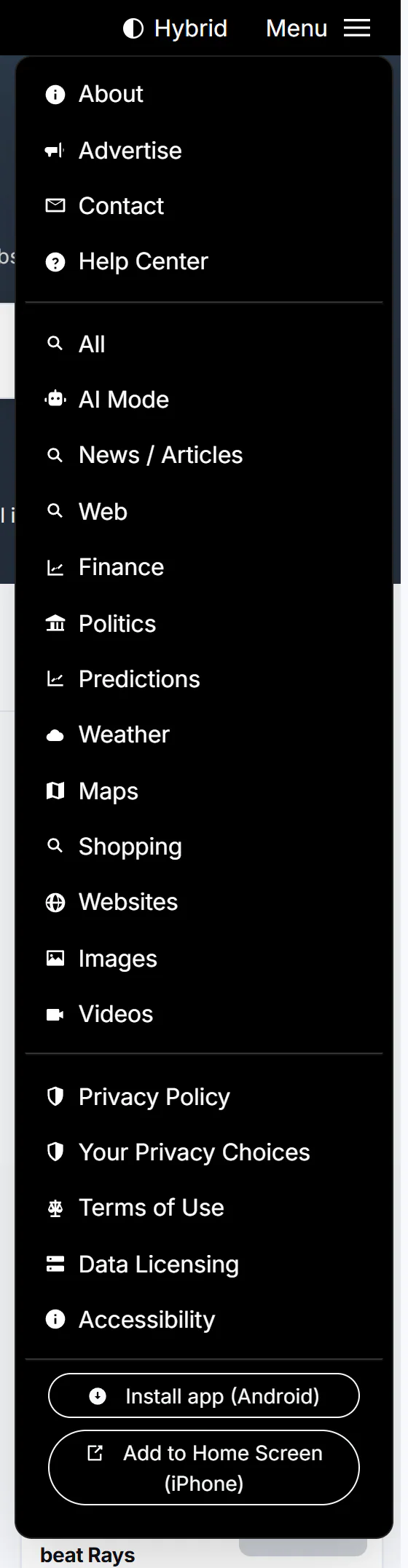
The Menu lists the pages of the site, every tab and the privacy and legal pages.
- 1About, Advertise and Contact
- 2Help Center
- 3The services this site has
- 4Your Privacy Choices
- About, Advertise and Contact are at the top.
- Help Center opens this manual.
- The middle of the list links to the search tabs and services of the site you are on, so it is another way to switch between them.
- Privacy Policy, Your Privacy Choices, Terms of Use, Data Licensing and Accessibility are at the bottom. Your Privacy Choices is where you decide about AI answers and saved lists. See Your Privacy Choices.
At the very bottom, the install buttons explain how to add 4Search to your phone as an app. See Install the app.
#The topics list and the front page
Below the search box the page splits in two.
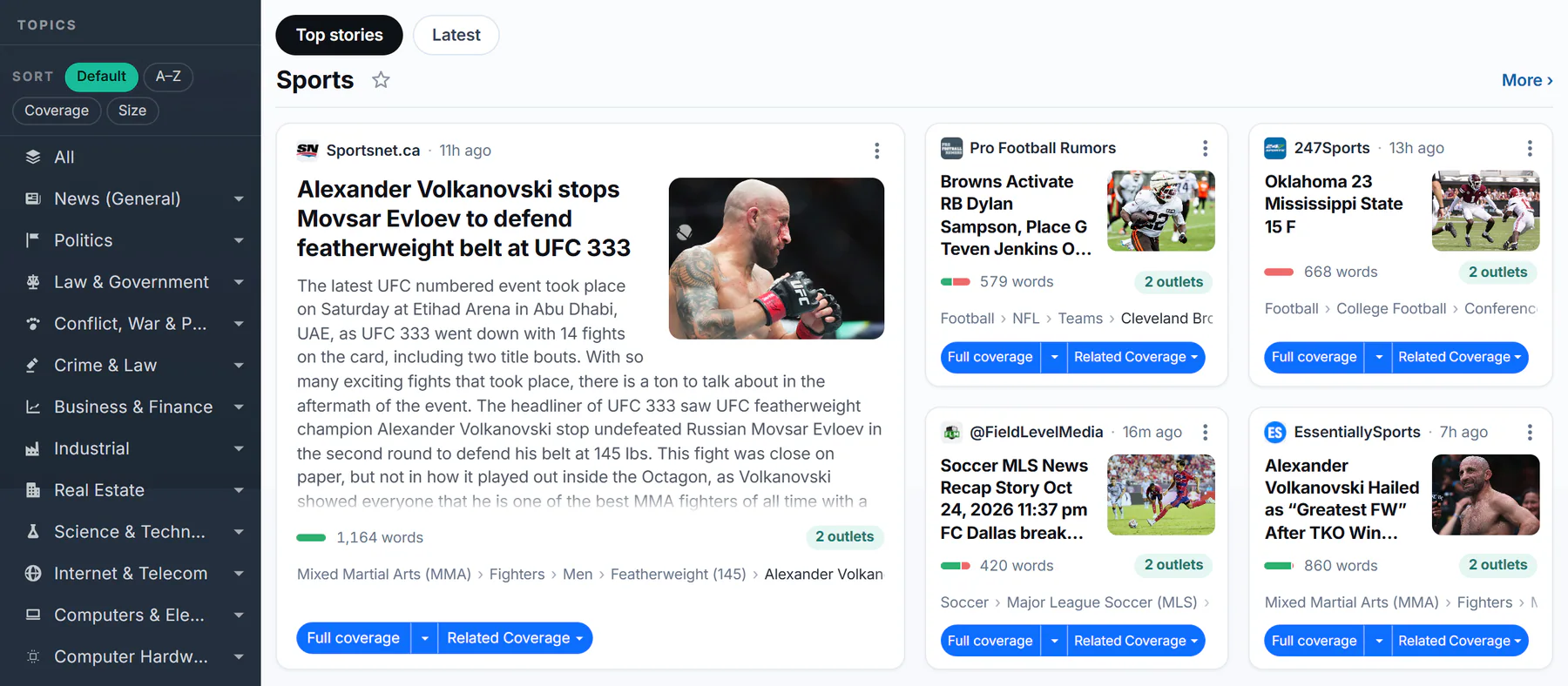
The topics list on the left and the front page of stories beside it.
- 1Topics list
- 2Sort the topics
- 3Top stories and Latest
- 4A topic: select its name to open it
- 5Star: follow this topic
- 6A story card
- The topics list is a menu of the subjects this site covers. Select a topic name to open its page. Select the small arrow beside it to open its subtopics. If you have typed words in the search box first, selecting a topic runs your search inside that topic instead.
- Sort changes the order of the list: Default is the site's own order, A–Z is alphabetical, Coverage puts the topics with the most stories first, and Size puts the topics with the most subtopics first. On a phone the list is hidden behind a Topics button.
- Top stories and Latest switch between two views. Top stories groups the day's biggest stories by topic. Latest is the newest articles in one list.
- A topic group starts with the topic's name. Select the name to open the topic, or More › at the right edge to see more of its stories.
- The star follows the topic. Followed topics are listed first the next time you visit. Following asks your permission to keep the list in your browser. See Follow a topic.
- A story card shows the source and how long ago it was published, the headline, an excerpt, a picture when there is one, the length of the article and a small bar for its tone. A label such as 2 outlets means that many outlets reported the same story. Full coverage finds other reports of it. See Result cards.
#The footer
Scroll to the bottom for the rest of the site.
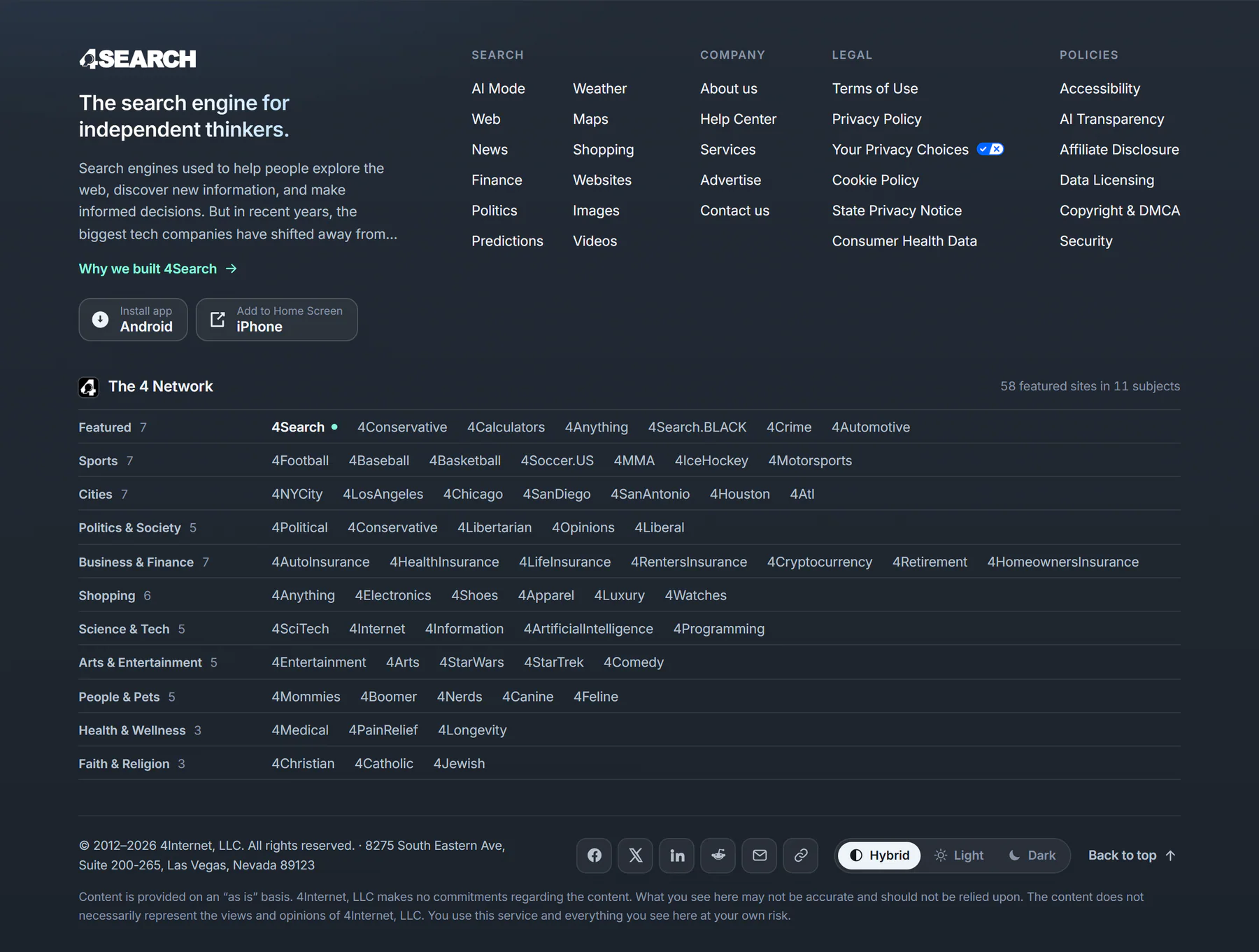
The footer: links, the 4 Network of sites, and the colour theme chooser.
- 1Search, Company, Legal and Policies links
- 2Install buttons
- 3The 4 Network, by subject
- 4The site you are on
- 5Pick a colour theme
- The link groups are Search (every tab), Company (About us, Help Center, Services, Advertise, Contact us), Legal and Policies. On a phone, the privacy links are repeated in the small print so they are never hidden inside a group.
- The install buttons are the same ones as in the Menu.
- The 4 Network lists featured sites by subject, from sports to health to cities. Selecting a name opens that site. See The 4 Network.
- A dot after a name marks the site you are on.
- The colour theme chooser lets you pick Hybrid, Light or Dark directly instead of cycling. Back to top returns you to the top of the page.
#What to do next
You now know where everything is. The next step is to use it.
#Common questions
Why does the tagline under the logo keep changing?
The home page shows two short lines in turn, one after the other. They are the site's two taglines. The change is instant if your device is set to reduce motion.
I do not see the topics list. Where is it?
On a phone or a narrow window, the list is hidden to leave room for the page. Select the Topics button, which sits under the introduction on the home page and in the top bar on results pages. See 4Search on your phone.
The row of tabs is cut off at the right. Is something missing?
No. The row slides sideways when it is wider than the window. Select the arrow at its edge, slide the row with your finger or the mouse wheel, or press Tab to move along it.